TikTok can be fun, until it isn’t. Maybe you need a break. Perhaps you now care more about privacy. Or you want a fresh start with a new handle.
Whatever the reason, you can remove your account in a few minutes. In this post, I will guide you on deleting a TikTok account with step by step instructions.
Contents
- 1 What Happens When You Delete Your TikTok Account?
- 2 How to Delete TikTok Account on Computer
- 3 How to Reactivate a Deleted TikTok Account?
- 4 How to Download Your TikTok Data?
- 5 How to Delete TikTok Account on Mobile (Android or iPhone)
- 6 How to Create a TikTok Private Account on Desktop?
- 7 How to Create a TikTok Private Account on Mobile App?
- 8 Before You Delete – Pre-Deletion Checklist for TikTok
- 9 Final thoughts
- 10 FAQ
What Happens When You Delete Your TikTok Account?
Before you delete your TikTok account, it helps to know what exactly happens next. Many users think deletion is instant, but TikTok has a short waiting period before your data disappears for good. Here’s what to expect.
1. Your Account Gets Disabled First
When you tap Delete account, TikTok doesn’t remove everything right away. The account becomes inactive for about 30 days. During this period, your profile and videos are hidden from public view. You can log in anytime to reactivate it if you change your mind.
2. Permanent Deletion After 30 Days
After the 30-day window ends, TikTok deletes your account and data permanently. This includes your profile, videos, followers, likes, and comments. Once this happens, recovery is no longer possible — you’ll need to create a new account to use the app again.
3. Your Data Gets Removed
TikTok removes your account data, including drafts, uploaded videos, and private messages. However, messages you sent to other users will still appear in their inbox, just without your name or profile picture.
4. Your Purchases and Coins
If you’ve bought TikTok coins or made in-app purchases, you lose access to them after deletion. TikTok does not refund unused coins or gifts linked to your account. If you use TikTok Shop, make sure to complete pending transactions before deleting your profile.
5. Your Username Becomes Available Again
Once your account is permanently removed, your username may become available for others to use. If you plan to return later, consider changing your username before deletion to keep your old one secure.
6. Your Data Backups
TikTok gives you the option to download your data before deletion. This file contains basic info like your videos, profile data, and activity log. You can request it in the app under Settings → Privacy → Download your data.
7. Privacy Policy Notes
TikTok’s privacy policy mentions that some information may remain stored for legal or safety reasons, even after deletion. This is standard for most social media apps, especially for cases related to fraud or abuse reports.
Deleting a TikTok account is permanent after the waiting period. Once the 30 days pass, your videos and profile vanish from the app.
How to Delete TikTok Account on Computer
It is very easy to delete your TikTok account using a web browser. Let us check how it works,
- Sign in to your TikTok account first. Click your profile picture from the top-right corner of your screen.
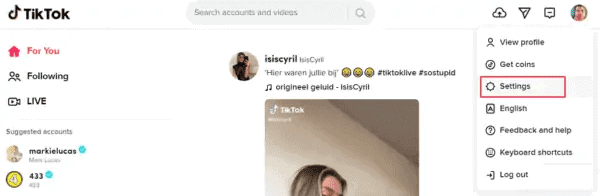
Choose ‘Settings’ from the menu.
2. You will be redirected to another page. Locate ‘Manage Account’> Account control option.
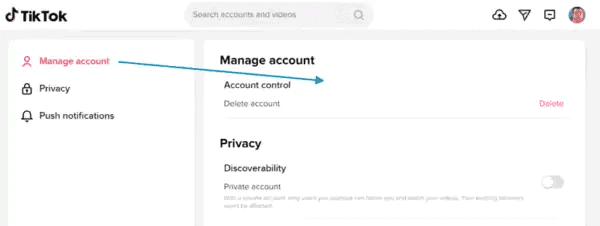
Click on Delete.
3. A warning message will appear like this,
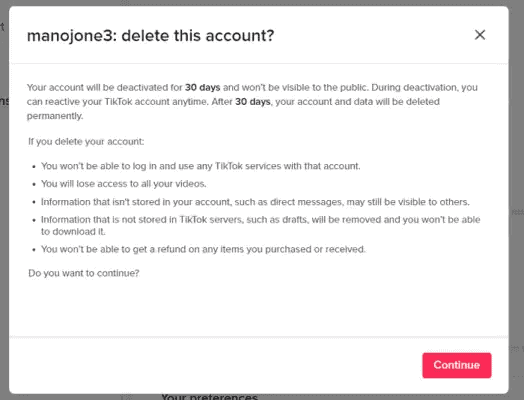
TikTok will deactivate your account for the next 30 days. No one can search for you or visit your account during this period. But you can log in back these days to reactivate the account. After 30 days, your TikTok account will be deleted permanently.
Click on Continue to proceed.
4. Enter your credentials to confirm your identity.
5. Tap the Delete account button to finish.

That’s it.
How to Reactivate a Deleted TikTok Account?
If your mind is changed, log in to TikTok anytime during the deactivation period. It will restore your account and videos. Thereafter, you will lose them forever.
How to Download Your TikTok Data?
Follow these steps to download your TikTok data,
- Open the TikTok app on your iOS or Android device.
- Head to your profile > Settings and Privacy.
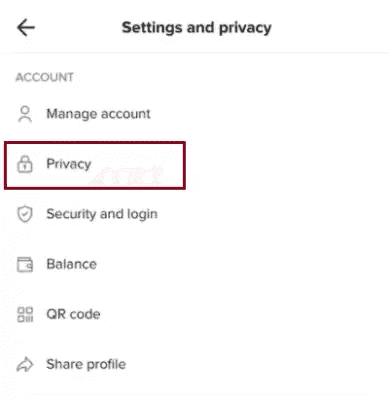
Open Privacy settings.
3. Scroll down to locate the ‘Download Your Data’ option. It will contain your videos, likes, comments, and private messages.
4. TikTok allows you to generate files in 2 formats—TXT or JSON.

Choose a file type and hit the ‘Request Data’ button. It may take some days to process your file. Once it is ready, you will get an email/app notification.
How to Delete TikTok Account on Mobile (Android or iPhone)
This’s how to delete your TikTok account through iOS or Android apps,
- Open the TikTok app on your mobile and sign in to your account.
- Open Settings and Privacy.
- Choose the first option, ‘Manage Account’.
- Click on ‘Delete account’.
- Select a reason for leaving TikTok. If you don’t want to answer, skip this step. Download data if you haven’t done it already.
- Tap ‘Continue’ to proceed with the account deletion. Confirm your identity by connecting your login service or by entering your verification code.
- Finally, click on ‘Delete account’ again to finish.
As we mentioned earlier, TikTok will deactivate your account for 30 days. You can reactivate the account anytime during the period.
If you are concerned about TikTok privacy, there is no need to delete your account. Instead, you can convert your public account to a private account. Follow these simple steps to create a private TikTok account.
How to Create a TikTok Private Account on Desktop?
Here’s how to create a private TikTok account,
- Sign in to your TikTok account.
- Click your profile picture from the top-right corner.
- Choose ‘Settings’ from the menu.
- Drag the toggle button for Private Account (Under Privacy) to the right.
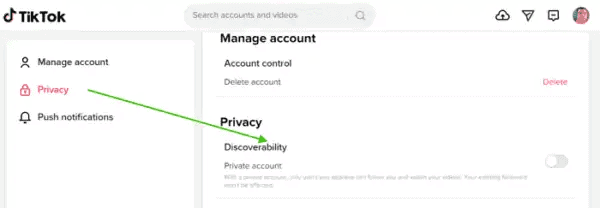
Done. It will instantly convert your TikTok account to private. The change won’t affect your current followers. But others can’t follow your account and watch videos without your approval.
How to Create a TikTok Private Account on Mobile App?
This is how to create a private TikTok account through your iOS or Android app,
- Open the TikTok app on your iOS or Android device.
- Visit your profile and go to the ‘Settings and Privacy’ option.
- Choose ‘Privacy’.
- Select the first option – Private account.

You will get an instant notification that the settings have been updated.
Done.
Before You Delete – Pre-Deletion Checklist for TikTok
Before you delete your TikTok account, take a few minutes to prepare. Once deletion begins, you can’t recover your videos, followers, or settings after the 30-day window. Use this quick checklist to make sure you don’t lose anything valuable.
1. Back Up Your Videos and Drafts
TikTok doesn’t keep your videos after your account is gone. If you want to save them, download each video to your phone or computer. You can do this by tapping the Share icon on each video, then selecting Save video.
For drafts, open each one and post them privately (visible only to you) before downloading. Drafts are stored only on your device, not on TikTok’s servers, so deleting the app before saving them means they’ll be gone forever.
2. Request a Copy of Your Data
TikTok allows you to download your account data, including your profile information, activity log, and settings.
Here’s how:
- Go to Settings and privacy → Privacy → Download your data.
- Choose the TXT format for a readable version.
- Tap Request data.
TikTok will process the request, and you’ll get a file ready to download in a few days.
This step is useful if you want a record of your account activity or follower stats.
3. Disconnect Linked Accounts
If your TikTok profile is linked to Instagram, Facebook, or Google, disconnect them first. Go to Settings → Privacy → Security → Manage app permissions. Remove any linked apps or third-party services.
This helps protect your data and prevents those platforms from continuing to share information with TikTok.
4. Cancel Any Active Subscriptions
If you’re using TikTok coins or subscribed to premium features, make sure you cancel those first. Deleting your account doesn’t automatically stop payments linked to Apple ID or Google Play.
Check your app store subscriptions and cancel them manually to avoid being charged again.
5. Inform Your Followers or Friends (Optional)
If you have followers or collaborations, consider posting a short video or story before you delete your account. It helps others know where to find you — maybe on Instagram, YouTube Shorts, or another platform.
6. Decide If You Want a Temporary Break
If you’re unsure about deleting your account forever, consider deactivating it instead. Deactivation hides your profile and content without removing your data. You can reactivate anytime by logging back in within 30 days.
7. Sign Out on All Devices
Before you confirm deletion, sign out from other phones, tablets, or computers where your account is active. It prevents accidental log-ins that could cancel your deletion request.
Taking a few extra minutes to complete this checklist helps you leave TikTok smoothly. Once you’ve saved your videos, disconnected linked apps, and canceled subscriptions, you can delete your account without regrets.
Final thoughts
Deleting your TikTok account may be a big process, but it’s easy once you know the full step. You can do it through the app or on the web in just a few taps.
Before deleting, save your videos, download your data, and cancel any subscriptions. If you only need a break, deactivation gives you time to decide. But if you’re ready to move on, deletion clears your profile and data after 30 days.
Taking this step helps you regain control over your time and privacy. Whether you return later or stay offline, you’ll have made a choice that fits your needs.
Read How to Download Instagram Photos, Videos, and Stories