You spend a long time writing a Facebook post. You pick the right photo and tag the right people. Then, hit “Post” and wait for the shares to roll in.
But they don’t.
One of your friends comments, “Hey, I tried to put this on my timeline, but there’s no share button.”
This is one of the most annoying glitches in social media marketing. You are not shadowbanned, Facebook is not punishing you. Your privacy settings are just stuck in the wrong gear. If a post doesn’t have a share button, it acts like a dead end. Going viral will end with you.
If you want to fix this for a current post or make sure it never happens again, this guide explains what you should do to fix things on your phone and computer.
Contents
Facebook Privacy Policy
Before we get to the settings, let me tell you why Facebook does this. It’s not a bug; it’s a strict privacy policy.
Think of it like a conversation in a room.
Friends only: You’re whispering to people in your living room. They can hear you, but they can’t shout your secret out into the street.
Public: You’re standing on your front porch with a megaphone. Anyone can hear you, and anyone can repeat what you said to their neighbors.
If your post is set to “Friends,” Facebook physically removes the share button for anyone who sees it. Even if your friend wants to help you promote your business, Facebook won’t let them share a “private” conversation to their public newsfeed.
To get the share button back, you have to move the conversation to the front porch. You have to go public.
Why “Friends of Friends” is not enough?
You might be tempted to choose “Friends of Friends” as a middle ground. Sounds safer than going completely public, right?
For marketing, this is a trap.
If you choose “Friends of Friends,” your best friend can share your post. But their cousin (who doesn’t know you) can’t share it any further. The viral chain breaks down after one jump.
If you want maximum reach, the only option that works is Public.
This is the most common problem. You’ve posted content, the interaction is starting, and you realize too late that the settings are wrong.
You don’t have to delete the post and start over. You can change the privacy rules of a post that’s already live.
On Desktop:
Navigate to your personal Profile or page. Find the post.
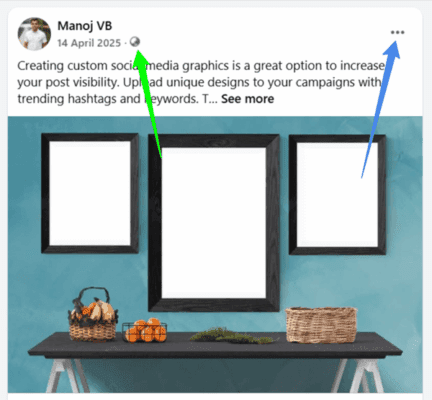
Click the audience icon next to your post’s timestamp. Alternatively, you can click the three-dots icon on the top right side and select ‘Edit audience’ to get the audience settings.
A menu will open with various privacy levels. Choose ‘Public’ to make your post publicly shareable. Then, your ‘friends’ will be replaced with a ‘globe’ icon to indicate that your post is public now.
On the Facebook app:
- Go to your Profile and scroll down to the post that’s causing problems.
- Look at the top right corner and tap the three-dots icon. Choose ‘Edit Privacy’ from the list.
- You will get audience options similar to the browser version. Select “Public”.
Refresh your feed (pull down on the screen). Look at that post again. The little “two people” (Friends) icon (near time stamp) should now be an Earth/Globe icon.
If you see the globe, you’re good. The Share button is now visible to the world.
If you run a business or personal brand, you don’t have to manually change this setting every time you post.
You can ask Facebook to share all your future posts publicly.
On Desktop:
Sign in to Facebook and tap your profile picture in the top right corner. Choose “Settings & Privacy” from the list.
Then, “Settings“. Locate “Default audience settings” under Tools and resources in the left pane. Open it. On the next page, you will see three privacy levels- Public, Friends, and Custom.
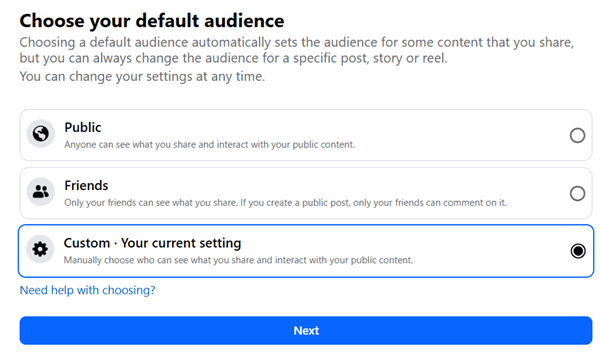
The custom setting allows you to manually choose who can see and interact with your content. This means you can set separate privacy levels for standard Facebook posts, stories, and comments.
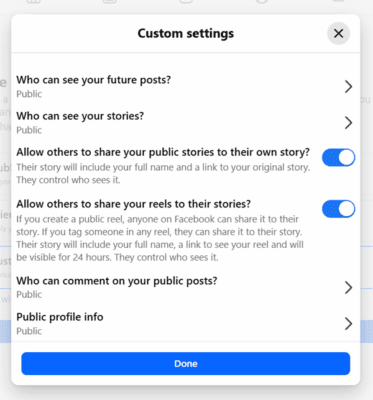
Click on Next. Set your privacy levels for each post type. However, if you selected Public or Friends in the last step, Facebook will automatically apply the same settings for all content types. Only Custom selected users will get advanced options.
On the Facebook app:
You will see the same settings on the Facebook app for Android and iPhone. Open Facebook and tap the three lines icon in the top left corner.
Choose Settings and Privacy from the list. Then, Settings > Tools and resources > Default audience settings.
Set your privacy levels as Public, Friends, or Custom. If you selected Custom, you will have advanced options.
Click on Done to Save.
Let us check how to manage privacy and make your new Facebook post shareable.
Sign in to your Facebook account and open the post composer. Locate your default privacy level that appears next to your profile name at the top.
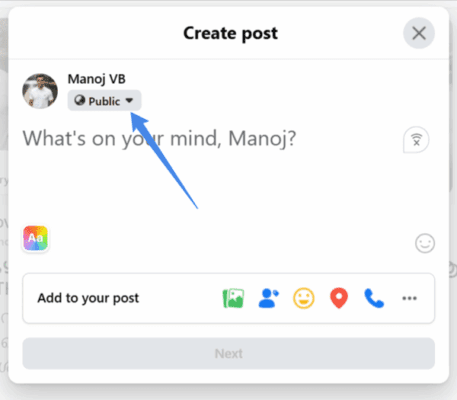
Click the drop-down arrow to change it.
Choose ‘Public’ to share your content with everyone on Facebook, including your non-friends. So they can view and share it with others.
Troubleshooting: Facebook Sharing is Not Working
This is where things get frustrating. You’ve followed the steps above. The post has the little globe icon. But people are still messaging you and saying they can’t share it.
If the basic settings aren’t the problem, one of these four “hidden blockers” is usually the culprit.
1. The “Locked Profile” Issue
Facebook has introduced a security feature called profile locking to protect your content from strangers.
However, profile locking and shareable posts cannot coexist. If your profile is locked, everything you post is restricted to your friends. Technically, you can’t make any posts public while your profile is locked. To fix this, you need to unlock your profile.
Once the profile is unlocked, your old posts may revert to their original settings, so check the specific post you want to share and make sure it is public.
2. You Posted in a Private Group
Context is important. If you join a group called “Local Moms of Chicago” and set the group to private, nothing you post there will ever leave that group.
Even if your settings are public, the group’s settings will override yours. There’s no way around this. If you want to share that content, you’ll have to copy the text and photo and create a new post on your own timeline or business page.
Sometimes, the person complaining about “cannot share” is actually trying to share a share.
Scenario: You post a photo, and Friend A shares it. Friend B sees Friend A’s post and tries to share it.
Problem: If Friend A has strict privacy settings, Friend B may not be able to share Friend A’s version of the post, even if your original is public.
Solution: Tell Friend B to open the original post (your profile) and share from there.
4. Business Page Restrictions
If the share button is grayed out when you post from a brand page, check your age and country restrictions.
If your page is set to “18+” or “US only,” Facebook treats all posts as restricted content. Since Facebook can’t guarantee that the person who clicks “share” won’t see it on someone who’s 15 or in Canada, they’re simply turning off the share button entirely to be on the safe side.
To fix this, set your page restrictions to “Everyone.”
Read How to Hack a Facebook Account and Protect Yourself from being Hacked?