Do you want to know how to change age on Facebook? It is very easy.
Changing your age on Facebook really means editing your birthday. Facebook does not store a separate “age” field. You can edit your birth date (day, month) and your birth year.
Facebook then calculates age from that date. It also allows you to set who can see the day/month and who can see the year. You can even hide your year and show only the day and month or hide both
This post explains how to hide your birthdays from friends or change your age on Facebook in 3–4 steps.
Contents
How to Change Age on Facebook via Web Browser
Step 1: Sign in to your Facebook account and tap your profile picture from the top-right corner.

Choose Settings & privacy from the menu list, then Settings.
Step 2: Click ‘Personal details’ under Account Centre.

Again, visit Personal details under Account settings.
Step 3: Click the Date of birth from the main screen.
If your Instagram Business account is connected to Facebook, you will get a pop-up notice that you can use the exact date of birth for both accounts. This means that changing the date of birth on Facebook will make changes on Instagram, too.

Tap Edit to change your date of birth. Click on Save.
Facebook doesn’t allow users to change their date of birth frequently. If you’ve changed it recently, you may need to wait some days to make another change.
How to Change Age on Facebook via iOS/Android Apps
Step 1: Open the Facebook app on your Android or iOS device.

Tap your profile picture from the top-right corner.
Step 2: Scroll down to the bottom and choose Settings & privacy.
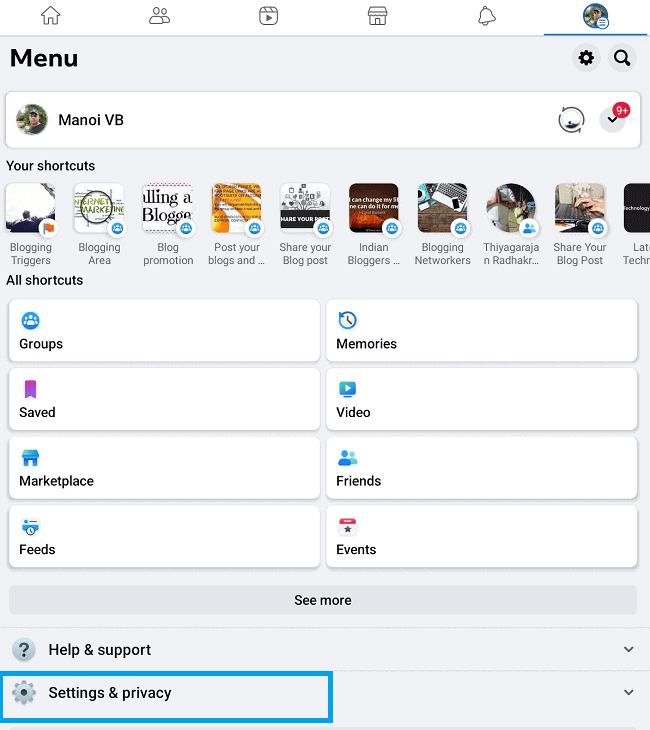
Then, select Settings.
Step 3: Scroll down to the bottom to locate your Profile information.

Step 4: Find the Basic info section and tap Edit next to it. Then, you will see a screen like this.

Click the drop-down arrow to change your birthday, birth month, or birth year. Click on Save.
Change the audience, if you don’t want to change but need to hide your birthday or month.
Click the drop-down arrow next to the Date of birth on the top to change the audience from public to friends, custom list, or only me. Once you change it to Only me, your friends won’t be notified about your birthday.
How to Hide Your Date of Birth on Facebook (Desktop)
Step 1: Sign in to Facebook and visit your profile.

Head to the About section.
Step 2: Open Contact & basic info from the left sidebar.

Find your Basic info section. Click the audience icon near the edit option on the right side. Change it to Only me to hide your birthday or birth year from friends.
Policy Limits: How Often You can Change Your Birthday
Facebook limits how many times you can edit your birthday. The exact number is not shown in Help Center, but if you change it too often, Facebook may block further edits for a period or ask for verification.
If you hit a message about a limit, you can request a birthday change with a photo ID through Facebook’s form. Your ID must show your face and date of birth.
Minimum age and teen safeguards (2025)
Facebook requires users to be at least 13 in most countries. If an account is under that age, Facebook can remove it. In some regions the minimum may be higher under local laws.
In April 2025, Meta expanded Teen Accounts to Facebook and Messenger. TheY come with stricter defaults for people under 16. Changing certain settings may need parent or caregiver approval. This safety layer can affect privacy options around birthdays for teens, so expect prompts if a parent is required to review a change.
Read How to Block a Website on Chrome