Google Drive is the best place to save and back up your favourite photos, videos, documents, etc. It is free and allows you to upload content from PC, mobiles, and tablets.
You probably know how to upload photos and files to Google Drive. Similarly, you can store and share videos. Let’s see how it is.
Contents
- 1 How to Upload a Video to Google Drive from PC
- 2 How to Upload a Video to Google Drive With Drive for Desktop (Sync App)
- 3 How to Share a Video on Google Drive
- 4 How to Upload a Video to Google Drive from iPhone and Android
- 5 How to Share a Video on Google Drive (Android and iPhone)
- 6 Google Drive Video Limits You Should Know
- 7 FAQ
How to Upload a Video to Google Drive from PC
This is the fastest path when you have a browser open.
- Visit Google Drive on your web browser & sign in.
- Click ‘New’ from the top-left corner of your screen. A drop-down menu will appear.
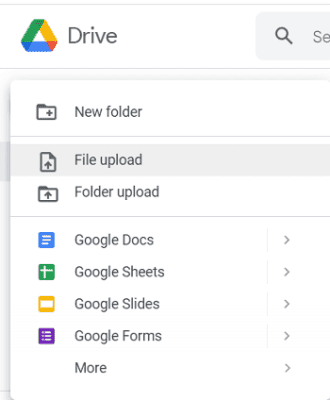
Select ‘File upload’ from the list. It will connect you to the local storage. Find and select a video to upload.
3. Wait for a few moments. Google will show the uploading status in the bottom-right corner. Once it is fully uploaded, a video icon with your file name will appear on the main screen.
How to Upload a Video to Google Drive With Drive for Desktop (Sync App)
Google Drive for desktop is a sync app that lets you back up and access your files directly from your computer. It connects your local folders to your Google Drive account, keeping everything automatically updated across devices.
To upload a video using Drive for desktop, install the app and sign in with your Google account. Then, drag your video file into the Drive folder on your computer.

The Drive app will automatically sync to your Google Drive cloud storage account. You can also select specific folders to sync continuously, so that any new videos you add will be uploaded automatically.
This method is faster and more reliable than manual uploads, especially for large video files. It helps you access your videos offline or on any device linked to your Google account.
Quick steps:
- Install Drive for desktop and sign in with your Google account.
- Copy video files or folders that you want to store into Google Drive.
- Open Google Drive from This PC. Then, My Drive.
- Paste your files (Ctrl + V).
Follow these steps to share videos stored on your Drive account.
- Right-click on a video file.
- You will see a menu with options to open, share, rename, and download the video.
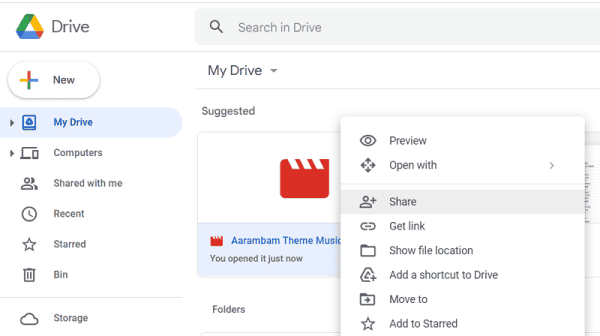
Select ‘Share’.
3. Now you should see a box like this,
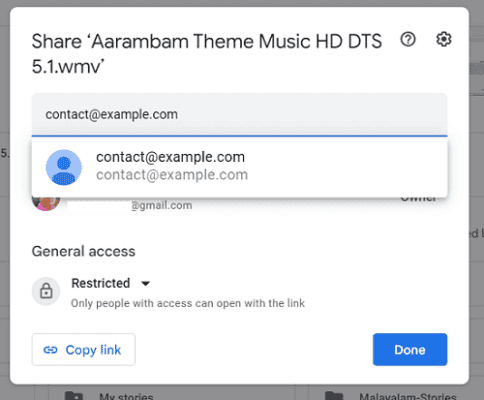
Type the first letters of the name of the person you want to share the video with. If they are in your Gmail contact list, Google will show their email ID as a matching suggestion. Otherwise, you have to type it manually.
There are two access levels for Google Drive files,
Restricted: Only people you selected can open files
Anyone with the link: Anyone with the link can open files. By default, they can only view files.
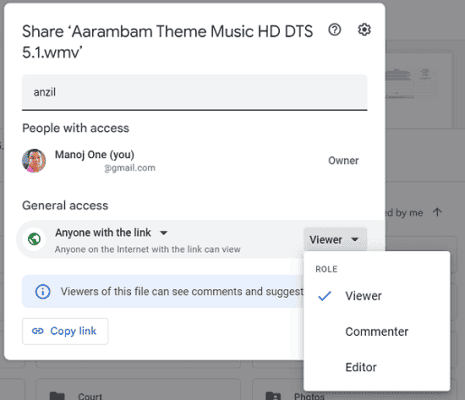
If you want them to edit files, change their role from viewer to editor. On the other hand, people with a Restricted status can view and edit files by default.

Enter a custom message if required. Click on Send to share.
How to Upload a Video to Google Drive from iPhone and Android
There are two ways to upload a video to Google Drive from a smartphone. Method 1: From the Google Drive app
- Open Google Drive on your Android phone or tablet.
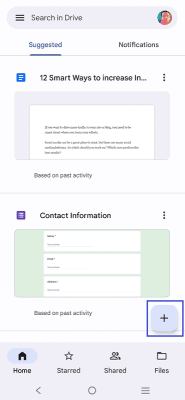
Tap ‘+’ button on the bottom.
2. You will get options like this,
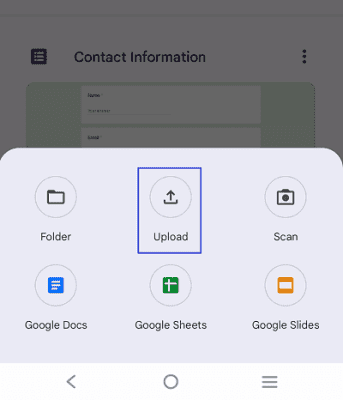
Click on Upload to upload a photo, video, or other file type. Select your video from the mobile’s internal storage or memory card. It may take some moments, depending on the size of the file and internet speed.
Google Drive will send a notification when the upload is finished.
Method 2: From Gallery/Photos
- Open your Gallery or Google Photos.
- Select your video.
- Tap Share → Drive.
- Choose the destination folder → Upload.
- Tap the ‘three-dots’ icon next to your video on Google Drive.
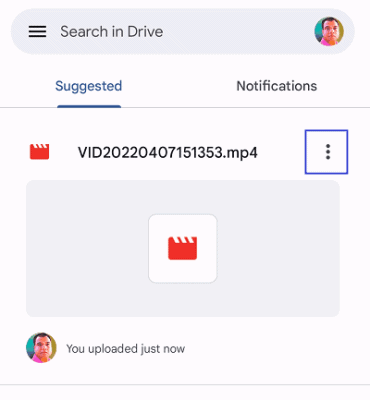
2. It will serve a menu from the bottom of your screen.
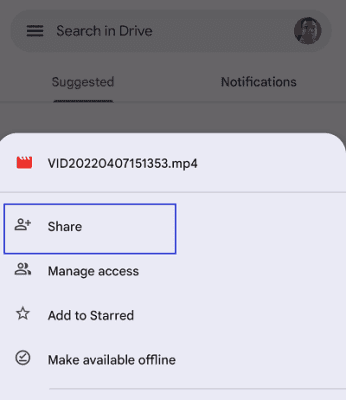
Select Share.
3. Enter one or more email addresses to share this video.
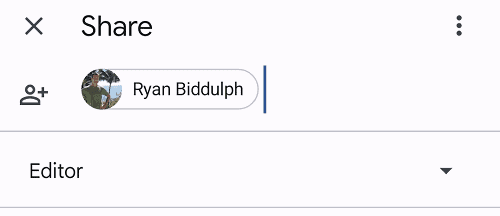
Type a message and hit the Send button.
Google Drive Video Limits You Should Know
→ Storage quota applies to everything you upload. The free tier is 15 GB shared. Google One plans start at 100 GB and go up to multiple terabytes.
→ Single file size can be massive. Drive can store a video up to 5 TB if your plan has that much space.
→ Preview resolution caps at 1080p even if your file is 4K or 8K. Download the original for full-res playback.
→ Processing time varies with length, resolution, codec, and internet connection speed. Long clips and uncommon codecs take more time.