Want more control over your Facebook profile? Many people prefer to keep their personal lives private. A private account lets you share posts only with people you trust. It limits who can see your photos, updates, and activity.
Facebook offers privacy settings that give you this control. You can adjust who views your profile, who can send friend requests, and who can find you in search results. Setting this up only takes a few minutes, but it makes a big difference.
In this guide, I will show you the exact steps to create a private account. You will learn how to change your privacy settings, hide personal details, and manage your audience with ease. By the end, your account will be safer, and your information will be in your hands.
Let’s get started with creating a Facebook account that keeps your personal space secure.
Contents
What is a Facebook Private Account?
A private account means that only people you choose can see your activity. Your profile, posts, photos, and friends list are hidden from strangers.
Public accounts allow anyone to see your updates, comment on them, or even share them. Private accounts restrict this access. Only approved friends can interact with your content.
This doesn’t mean your account disappears from Facebook. Friends can still connect with you. But outsiders will see only limited details, such as your name and profile photo.
Benefits of Having a Private Facebook Account
A private account gives you more control over your personal data. Here are the main benefits:
- Control who sees your posts: Share updates only with people you trust.
- Reduce unwanted friend requests: You will get friend requests from close circles only.
- Protect personal data: Hide phone numbers, email addresses, and other sensitive details.
- Keep activities private: Only close connections see what you like, comment on, or share.
These changes make Facebook feel more personal and secure.
How to Create a Facebook Private Account
In this post, we’ll tell you how to create a Facebook private account or make your existing Facebook profile private in easy-to-follow steps.
1. Limit friendship requests
Facebook is mainly used to find new friendships and recover lost ones. When creating a private account, you are building a network of limited friends with whom you are familiar. Right?
Let’s first see how that is possible. Facebook analyzes people’s locations, interests, and mutual friends and provides profiles that suit them as suggestions for friendship. As a result, even if you do not send requests to anyone, you will continue receiving friend requests from people in your vicinity or who know you.
To limit them, do this:
Sign in to your Facebook account first. Click your profile picture from the top-right corner of your home screen and choose “Settings & Privacy” from the list.
Pick ‘Settings’ next.
Visit Privacy Checkup from the left sidebar. A new page will appear with options to manage your friend requests, sharing, data settings, and ad preferences.
Select the ‘How people can you find on Facebook’ section. Click on Continue to proceed.
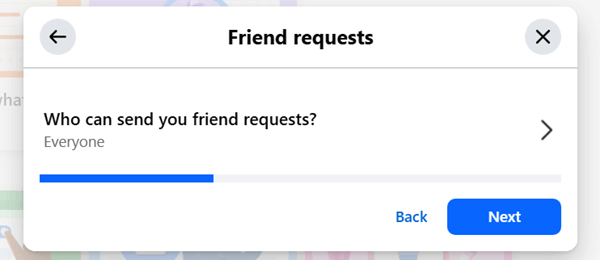
Then, you will see a small step-by-step wizard to manage your friend requests and search engine visibility.
By default, everyone on Facebook can send you friend requests. Click on the ‘Who can send you friend requests?’ option. Change it to ‘Friends of friends’.
After that, only people in your friends’ friend list can send you connection requests. It means that if you haven’t added any friends, no one else can send you a friend request.
A Facebook account without friends can be a cloud storage vault to store your photos, videos, and notes. What do you think?
If your Facebook account contains several friends, setting up this option won’t affect your existing friends. They will remain in your network until you remove them manually.
Click on Next.
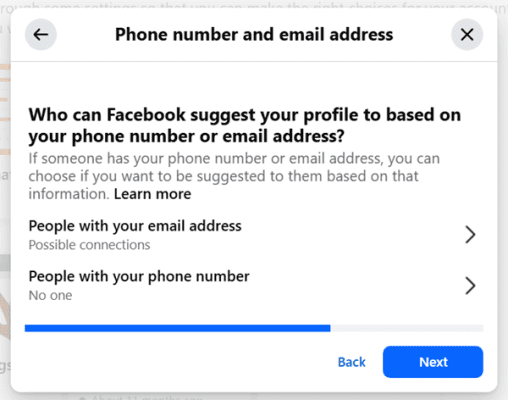
Facebook will now ask you if it can suggest your profile to others by your phone number or email. Set each option as ‘friends of friends’ to limit friend requests or ‘no one’ to disable these email/phone-based suggestions.
Again, click on Next. Your old friends and acquaintances can search for your social media profiles through Google. You can ask Facebook to hide your profile from search engines in this step.
Do you want search engines outside Facebook to link to your profile? — Disable it to hide your profile in search results.
Finally, click on ‘Review another topic‘ to go back to the Privacy Checkup page and manage other parts of your profile.
2. Manage your post visibility and contact details
In this section, you can display or hide the following details on your Facebook account.
- Phone number
- Email address
- Date of Birth
- Location
- Relationship
- Friendlist
- Liked pages
Facebook also allows you to manage these things on the same page,
- Audience settings
- Tagging
- Blocking
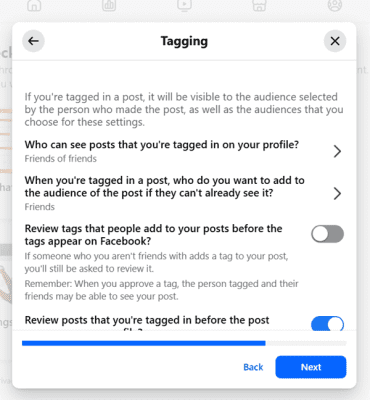
Start with your contact details. Expand each option to manage their privacy. These are the privacy levels you can set on each item.
Public—Anyone on Facebook
Friends— Your friends
Friends of friends— People who have mutual friends with you
Friends except acquaintances— All friends in your friend list except acquaintances
Custom lists—Share with custom friend lists like Acquaintances, close friends, best friends, etc.
Custom friends— Custom friends and lists
Only me— None. Best for creating personal notes.
Exclude friends— All friends excluding ‘XXX’
After configuring the privacy part for Profile Information, click on Next to manage the audience for your future posts. Here, you can change privacy for future posts, stories, and limit visibility for past posts.
Then, customize your Tagging and Blocking settings. Finally, click on Review another topic to handle another part.
Read How to Find out Your Most Popular Tweets- Most Liked, Retweeted Tweets
3. Manage Apps and Websites
You can use Facebook to log in to several websites and apps. For that, you should grant them permission to access your account and collect data. Sometimes, you may stop using such apps after a while.
The saddest part is that you may forget to revoke your permission. As a result, third parties can still access your data even though you are not using their apps.
Visit your data settings on Facebook to view apps and websites that you used earlier by connecting to Facebook.
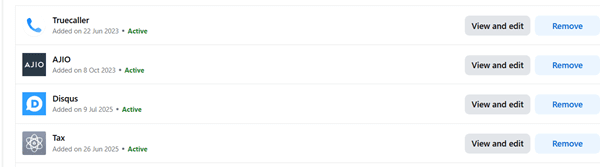
View and edit your permissions or revoke them if you are no longer using an app. Scroll down to the bottom to prevent apps, websites, and games from signing in with Facebook- in 1 click.
Go back to Privacy Checkup to secure your Facebook account by changing your current password and enabling two-factor authentication.
Open Ad preferences to manage what profile information you want to share with advertisers to display ads. It includes your relationship status, education, job, social interactions, etc. Turn off information that you don’t want to share.
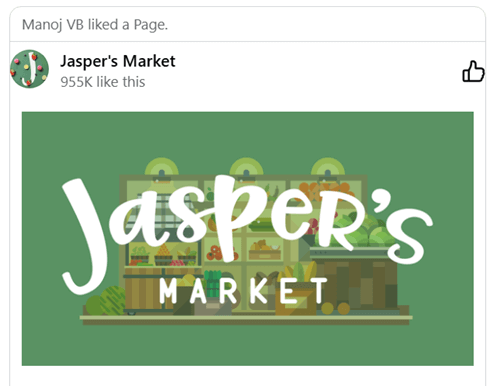
Finally, decide who can view your social interactions, such as likes, comments, check-ins, and others, alongside ads. To stop Facebook from using your activities to promote products and pages, set ‘Only me’ as its privacy level.
4. Lock Facebook profile
Facebook also allows users to lock their profiles to prevent prying eyes. If someone opens a locked account, they will see a screen like this:
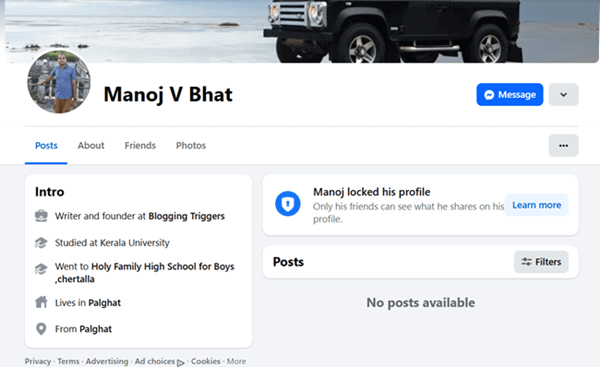
Only your friends can see your Facebook posts, including stories and photos. If a visitor is not in your friend list, they can’t view your profile picture in full resolution format either. However, they can view your public posts and profile information that is set as public.
Here’s how to lock your Facebook profile.
- Sign in to your Facebook account and click the ‘three-dots’ icon on the profile for more options.
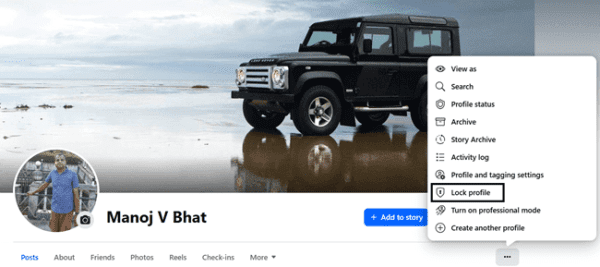
Choose ‘Lock profile’from the list. Confirm your request.
That’s it. Your Facebook profile is locked now.
Ensure that you are not tagging friends and others in your Facebook posts or photos. If you tagged someone, their friends and friends of friends, or even the public (depending on their tagging settings) can view your posts.
How to Remove a Facebook Friend?
To remove a current friend on Facebook, do this:
- Visit your Facebook profile and open your friend list.
- Click the ‘three-dots’ icon next to a friend’s name.
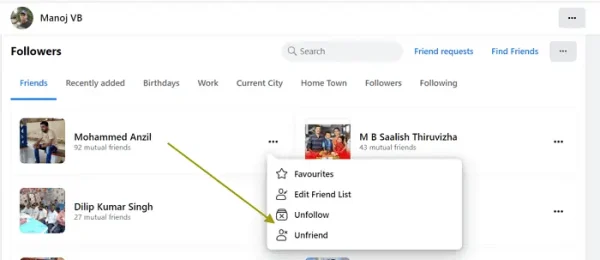
Find a friend whom you want to remove. Tap the ‘three-dots’ icon next to them. Select ‘Unfriend’. Confirm the change to remove a friend without knowing him or her.
Final thoughts
It is commonly said that there is no such thing as privacy on the Internet. Once a status update, photo, or video is posted anywhere, anyone can take a screenshot or download it.
Despite these facts, many people today use private Facebook accounts to communicate with a few people or to protect their privacy. You can successfully have a private Facebook profile if you don’t tag people outside your network.
A private Facebook account can help you use social media for your personal purposes and increase productivity without wasting time on unnecessary arguments.
You may also be interested in these posts ↴