You may be accessing Facebook from an office computer or a common home PC shared by multiple people. If so, you should sign out of Facebook after each session.
In this post, I will explain how to log out of Facebook on desktops, smartphones, and tablets easily.
Contents
How to Sign Out of Facebook on a Computer
Here’s how to end your Facebook browsing session on PCs,
Click your profile picture from the top right corner of your Facebook home screen.
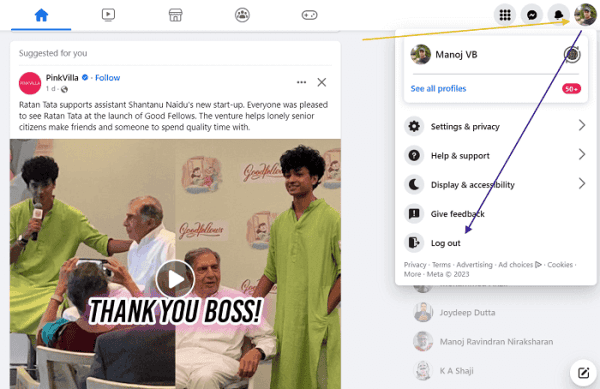
Select Log out from the menu. This will log you out of your Facebook account and bring you back to the login screen.
How to Sign Out of Facebook on iOS or Android
If you’ve visited Facebook from a tablet device, follow these steps to log out from your account.
Step 1: Go to the Facebook home screen.
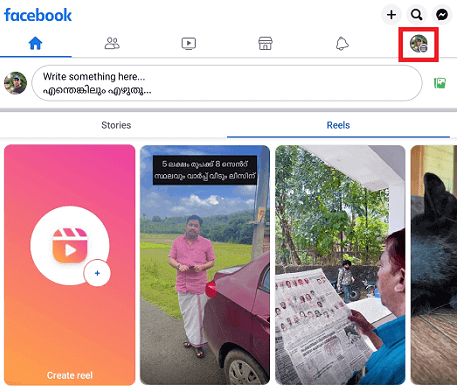
Click your profile picture icon from the top right side.
Step 2: Then, you will get a list of options like this,
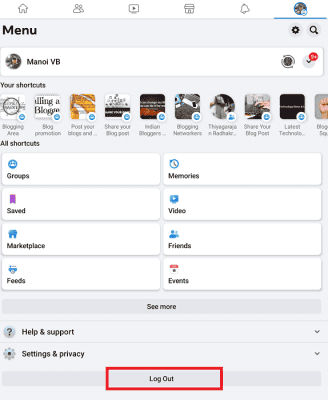
Scroll down to the bottom to locate the Log Out button. Tap it. That’s it. You’ve successfully logged out of Facebook.
How to Sign Out of Facebook from Connected Devices
You may be logged into Facebook on various devices that you used earlier, including smartphones and laptops. Sometimes, things get complicated if you sell them without a factory reset. Let’s see how to force log out of Facebook from those devices,
Step 1: Click your profile picture icon from the top-right corner of the Facebook home screen.
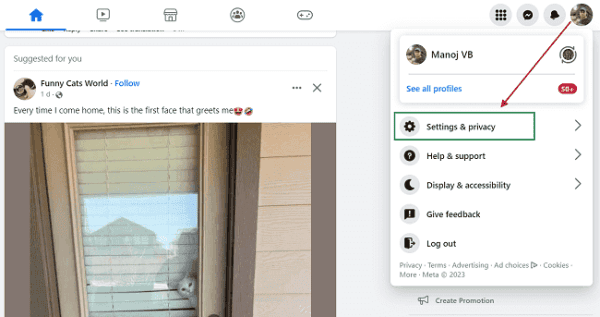
Visit Settings & privacy, then Settings.
Step 2: Your Facebook information will appear on the next page.
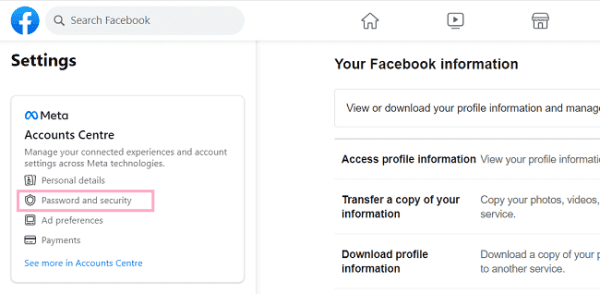
Click Password and Security.
Step 3: You will be redirected to the Facebook account centre.
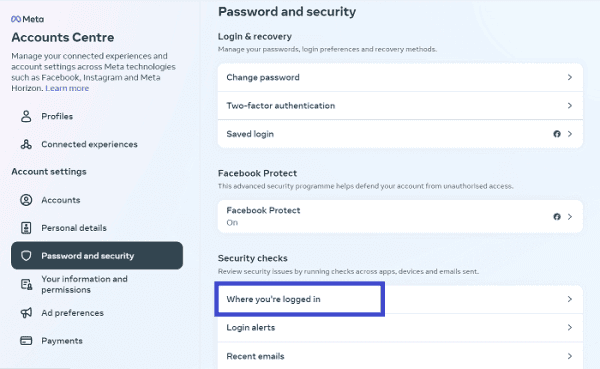
Click on Password and Security again.
Step 4: Under Security checks, tap ‘Where you’re logged in’ to view devices that access your Facebook and Instagram accounts.
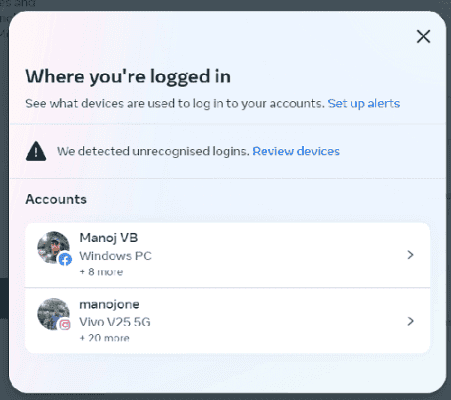
A pop-up box will appear. You will see a notice on the top if there are unrecognised logins. Click Review logins to view and confirm your recent logins or change the password immediately.
Select your Facebook account to view connected devices.
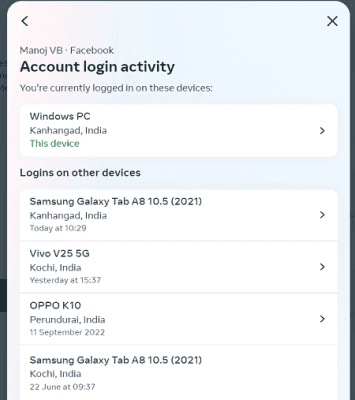
Facebook will show device model numbers from which your account is accessed and the last login time. If there is a device you no longer use, tap the name to see the log-out option. Click on log out. Confirm the request to force log out from the selected device.
Other Facebook Password Tips
Change Your Password to Cut off Sessions
Changing your password can force sessions to end. Open Settings & privacy → Settings → Accounts Center → Password and security → Change password.
Choose a strong new password and save it. When prompted, sign out of other devices. This action prevents anyone who may have your old password from accessing your account.
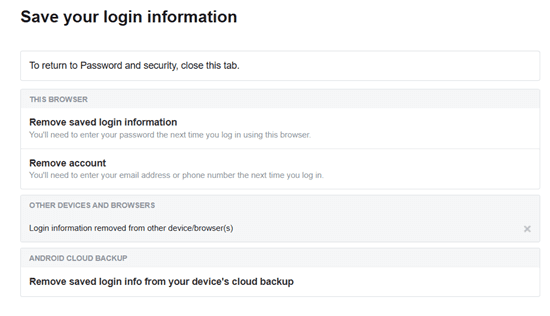
Some browsers offer to save your login. If you used a shared computer, remove that saved login.
On Facebook, visit Password and Security settings, or go to Accounts Center to review ‘Save your login info’. Review and remove unnecessary info.
How to log out of Facebook Messenger
Messenger does not show a big Log out button. The most reliable method lives in Facebook’s security settings.
Open Facebook → Settings & privacy → Settings → Security (or Accounts Center → Password and security) → Where you’re logged in. Find Messenger sessions and end them.
Messenger on Android: Remove Data if Needed
If your Messenger session sticks on Android, open Settings → Apps → Messenger → Storage and clear data. This removes the session locally.
Two-factor authentication (2FA)
2FA is a powerful method to secure your Facebook account. . Open Settings & privacy → Settings → Accounts Center → Password and security → Two-factor authentication.
Pick a method: app-based codes, text messages, or a physical security key. Use a code generator app for stronger protection.
If someone steals your password, they still can’t log in without the code. Facebook supports multiple 2FA options and encourages their use.
Clear Browser Cookies to Fix Looping Logouts
If Facebook keeps logging you out in a browser, clear cookies and site data. Open your browser settings, clear data (especially for Facebook.com), then sign in again.
Revisit Where you’re logged in and make sure only trusted sessions remain.
Third-party Logins that Uuse Facebook
Some apps let you “Sign in with Facebook.” If you stop using an app, remove its access.
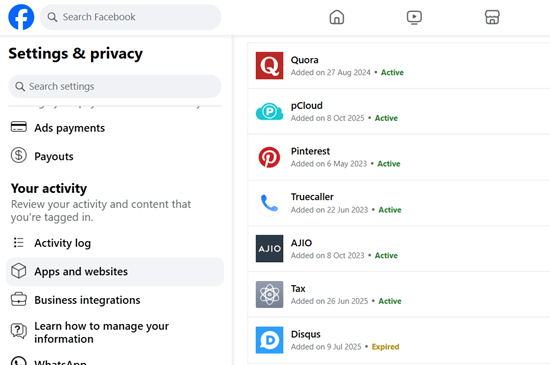
Open Settings & privacy → Settings, then look for Your activity (left sidebar) → Apps and websites linked to your account. Remove anything you don’t trust.
Read Facebook Groups: How to Create, Leave, Pause, Archive, and Delete a Facebook Group